Step 1: Set Up Your Theme /themes/custom/my_react_theme
Step 2: Initialize Node.js: In your theme's root directory, run npm init -y to create a package.json file.
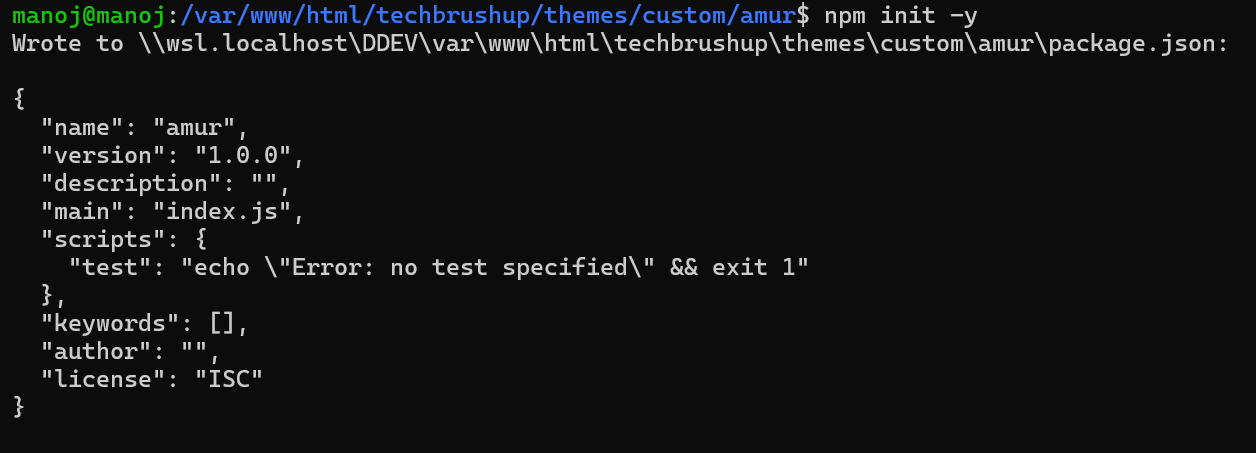
Step4 : add the build scripts. locate the "scripts" section. Add the "build" and "dev" entries as shown below
{
"name": "amur",
"version": "1.0.0",
"description": "",
"main": "index.js",
"scripts": {
"build": "vite build",
"dev": "vite",
"test": "echo \"Error: no test specified\" && exit 1"
},
"keywords": [],
"author": "",
"license": "ISC",
"dependencies": {
"react": "^19.2.4",
"react-dom": "^19.2.4"
},
"devDependencies": {
"@vitejs/plugin-react": "^6.0.1",
"vite": "^8.0.3"
}
}
Step5 : create dist and component folder into theme root directory.
cd custom/amur
mkdir components
mkdir dist
Step 6: create a sample component which you want to render
Step 7: Create and Configure Vite vite.config.js file
import { defineConfig } from 'vite';
import react from '@vitejs/plugin-react';
export default defineConfig({
plugins: [react()],
build: {
outDir: 'dist',
rollupOptions: {
// Manually specify your entry file instead of using glob
input: './components/HelloReact.jsx',
output: {
entryFileNames: '[name].js',
format: 'es',
},
},
},
});
Step 7: Connect React to Drupal via SDC
Step 8: Build Your React Component (HelloReact.jsx)
import React from 'react';
import { createRoot } from 'react-dom/client';
const HelloReact = ({ message = 'Hello from React!' }) => {
return (
<div>
<h2>{message}</h2>
<p>React is working in your amur theme!</p>
</div>
);
};
// Mount the component
document.querySelectorAll('[data-component="hello-react"]').forEach(container => {
const props = JSON.parse(container.dataset.props || '{}');
const root = createRoot(container);
root.render(<HelloReact message={props.message} />);
});
Step 9: Run the Build
npm run build
Step 9: Now that your React component is built, let's integrate it with your Drupal theme
Step 10: Create a Drupal Library
Update your amur.libraries.yml file to load the React component:
react:
version: 1.x
js:
dist/HelloReact.js: {}
dependencies:
- core/drupal
- core/drupalSettings
Step 11: Attach the Library to Your Theme
libraries:
- amur/global-styling
- amur/react
Step 12: Add the Container to a Template
Add the HTML container to a Twig template (e.g., templates/page.html.twig or templates/node.html.twig):
Step 13: Clear Drupal Cache
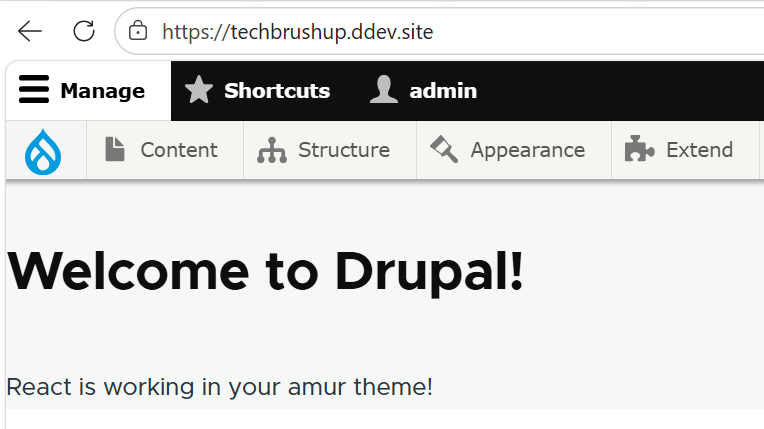
Step 14: Verify It Works